Android:下载微博客户端
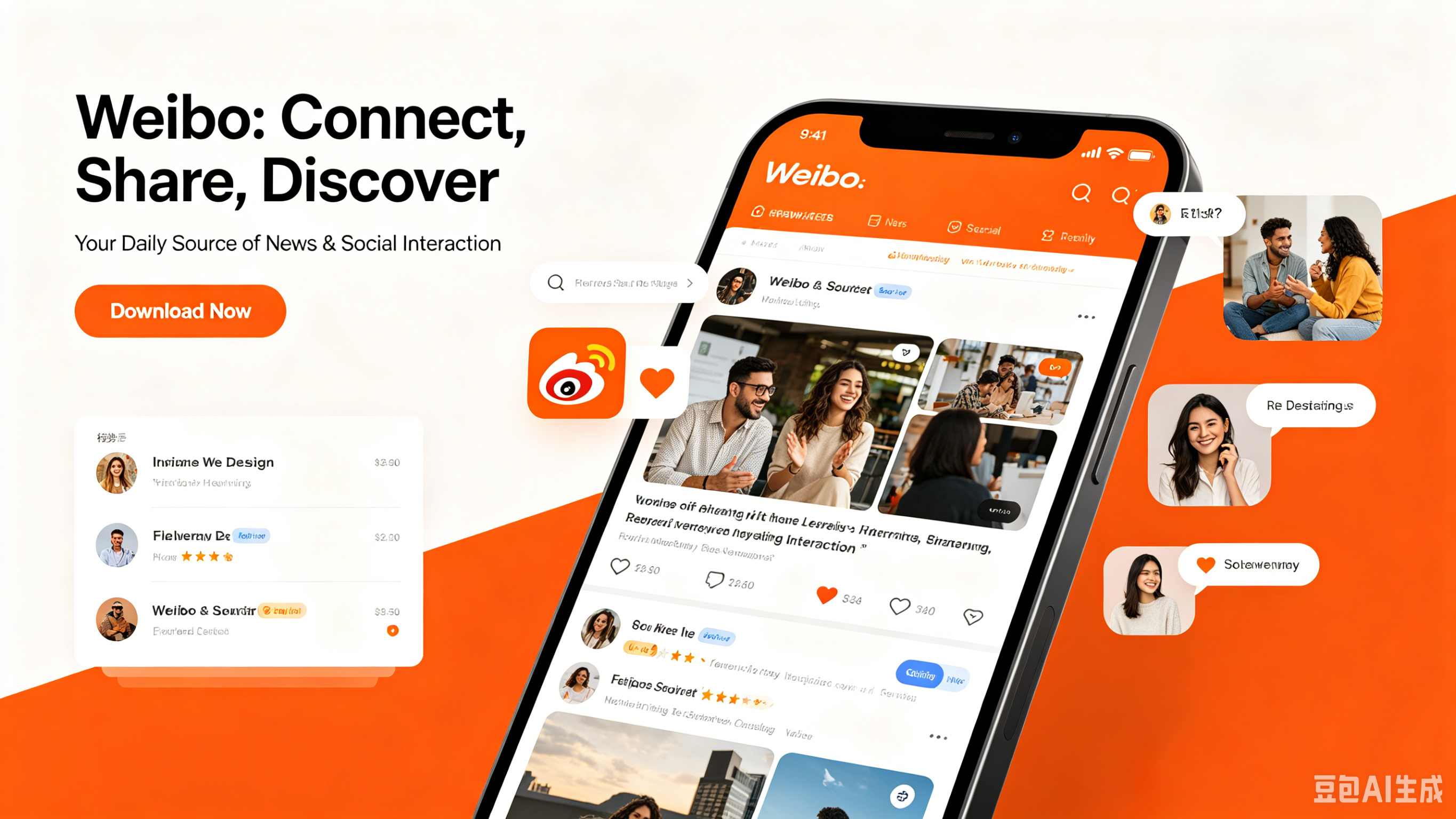
Weibo, often called “China’s Twitter,” is a leading open social media and microblogging platform. Its core functions include posting text, images, short videos, and live streams, with hashtags (#) and @mentions to boost interaction. The real-time Hot Search board displays the most discussed topics nationwide, keeping users updated on news, entertainment, and trends. Verified “V accounts” (celebrities, media, brands) deliver authoritative content, while Super Topics serve as fan communities for shared interests. The personalized timeline mixes followed accounts and algorithmic recommendations. With a bilingual interface and global content access, Weibo helps foreigners in China stay informed, follow local influencers, and engage with Chinese culture in real time.
Weibo User Guide
(1) Download and Registration
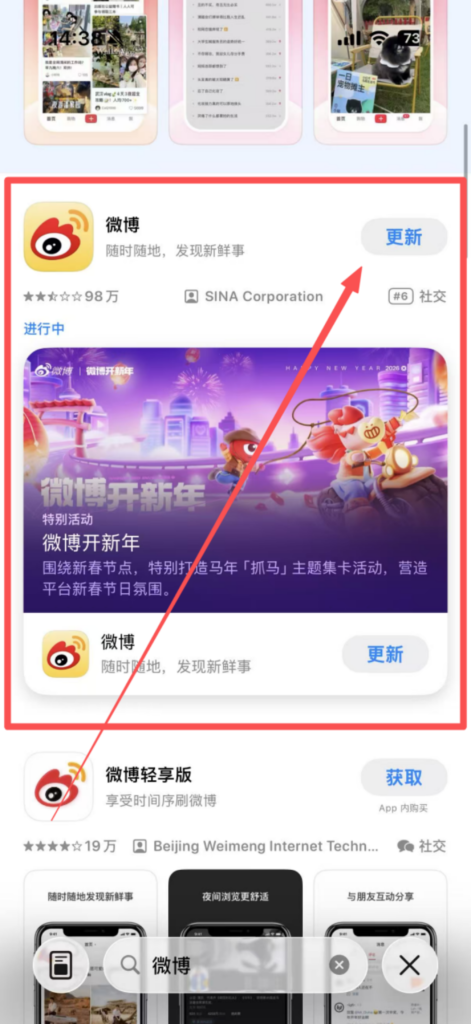
Search for ‘Weibo’ in your mobile app store, then click ‘Download’ to install.
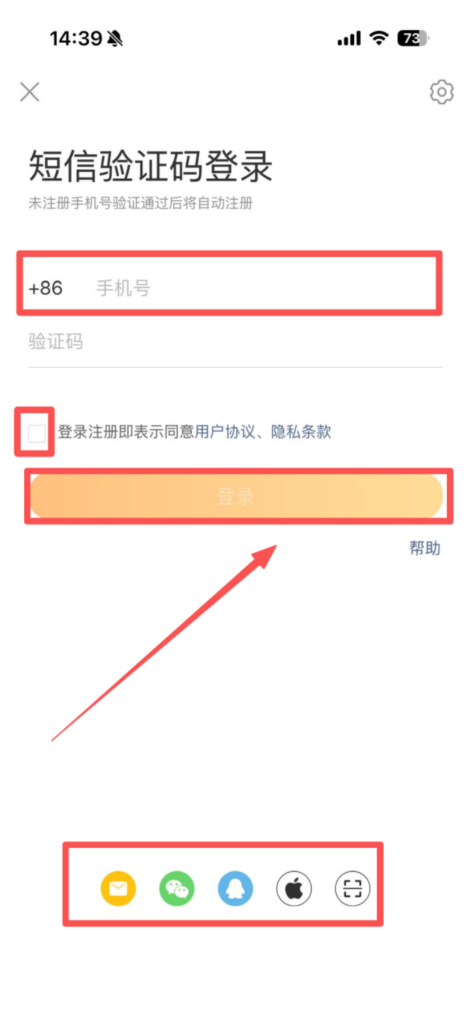
Registration process: Open the app and click ‘Register.’ You can register with your phone number (enter your phone number, receive a verification code via SMS, and set a login password); you can also quickly register via WeChat, QQ, or Apple ID without setting a separate password. After registration, you can bind your phone number to complete your account.
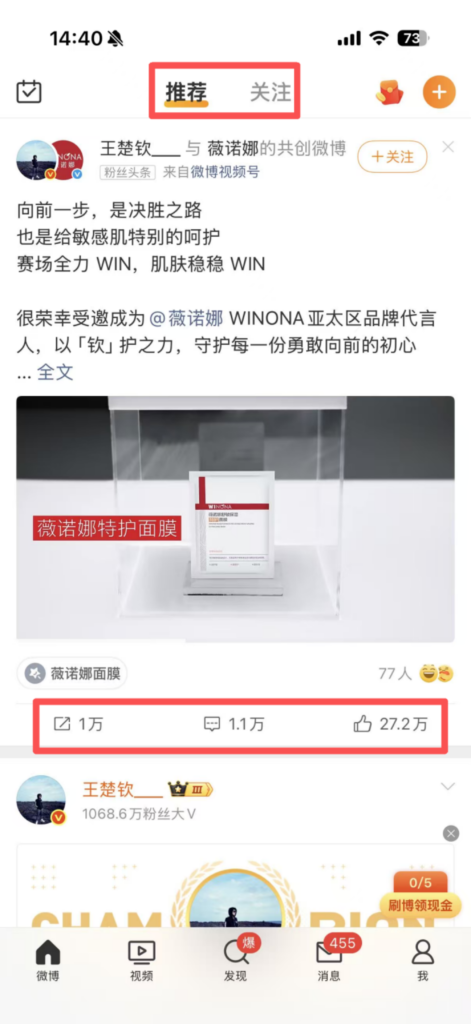
(2) Using Core Features 1. Browsing the Homepage and Viewing Updates Content Display: After logging in, you are taken to the homepage by default. The ‘Following’ section shows the latest updates from the users you follow (posts, shares, comments), and the ‘Recommended’ section suggests popular content based on your interest tags.
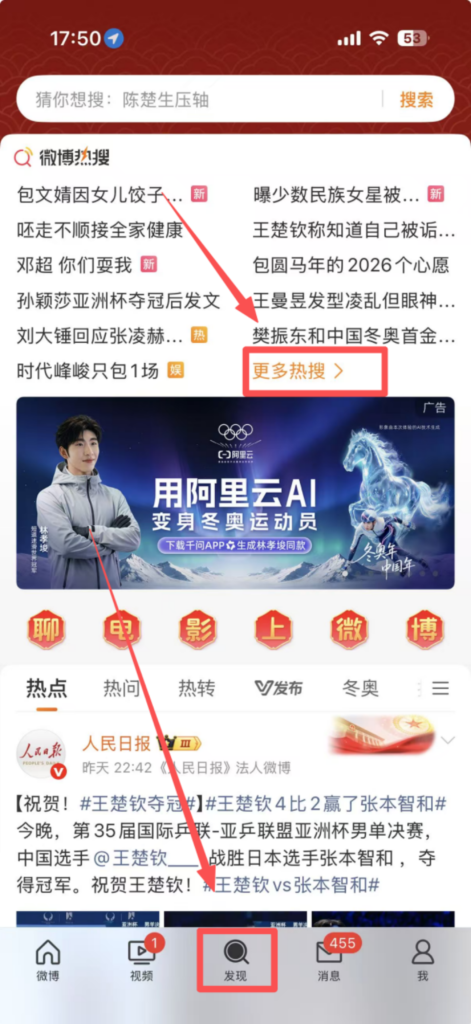
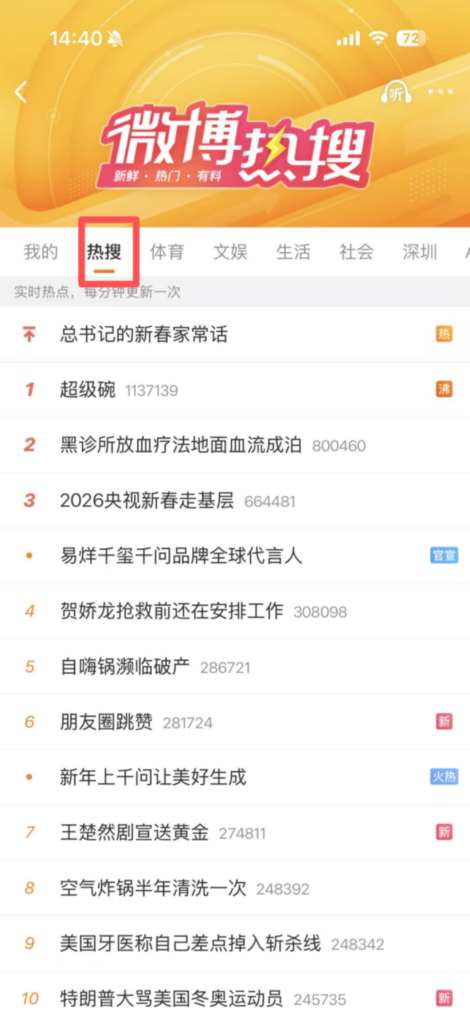
Hot Topics: The top of the homepage displays a ‘Trending List’, including real-time popular topics, news events, celebrity updates, etc. Clicking on a topic will take you to a dedicated page to view related discussions and the latest developments; content can be refreshed by pulling down to get real-time updates.
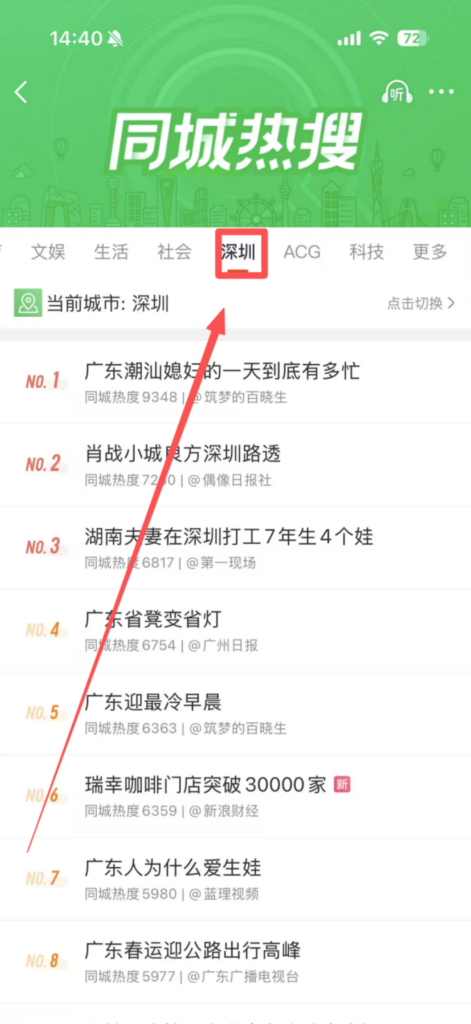
Local News: Click on the ‘Local’ section, which automatically detects your current city and displays local trending news, community information, and events in the same city. You can also switch cities to view local content from other areas.
2. Content Publishing Feature
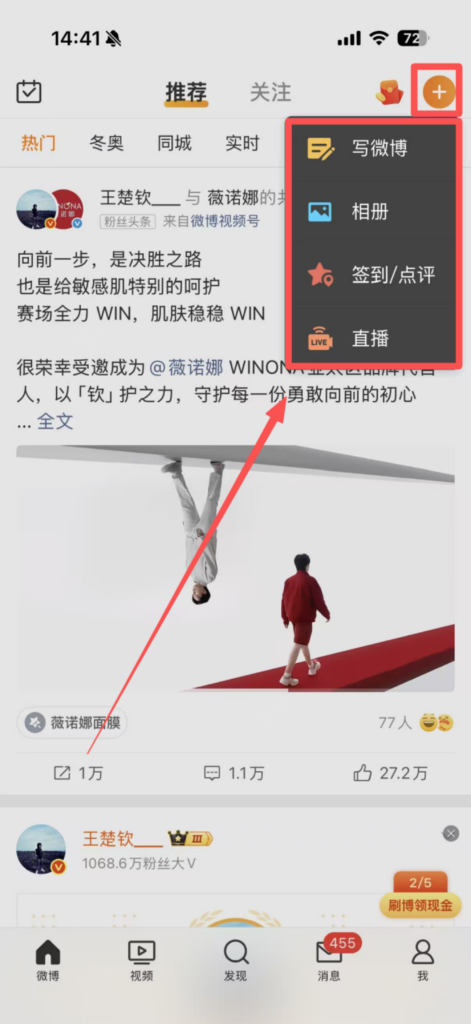
Publishing Entry: Click the “” icon in the top right corner of the homepage to bring up the publishing menu, which supports publishing various types of content such as “text,” “images,” “videos,” “topics,” “polls,” and “live broadcasts.”
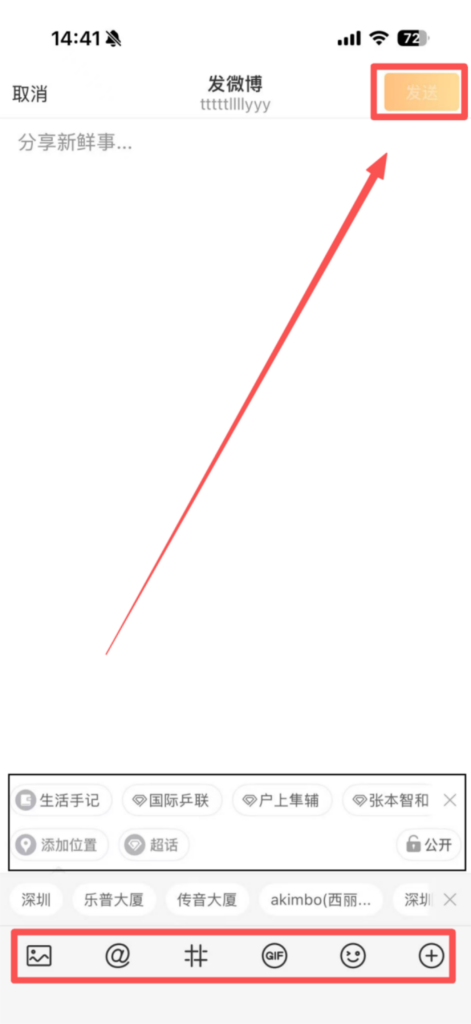
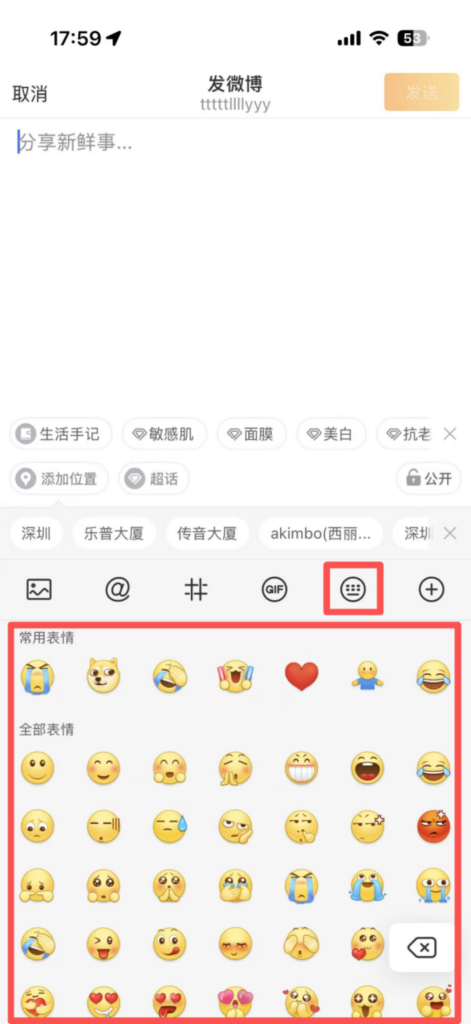
Text Post: Select ‘Text’, enter your content (supports Emoji, hashtags #xxx#, @friends), and after editing, click ‘Send’ to post it to your profile.
3. Search and Follow Function
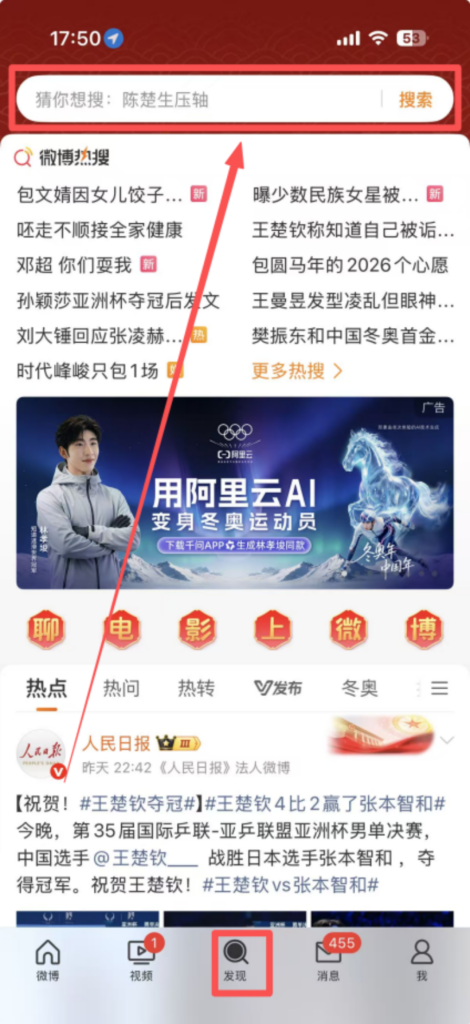
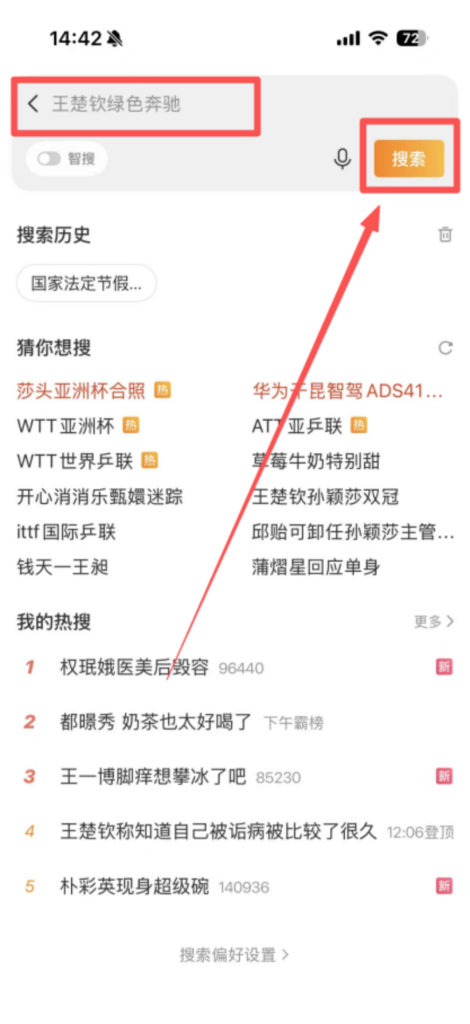
Search entry: Top search bar on the homepage, enter keywords (topics, celebrity names, news events, usernames, etc.), click “Search” to display relevant results.

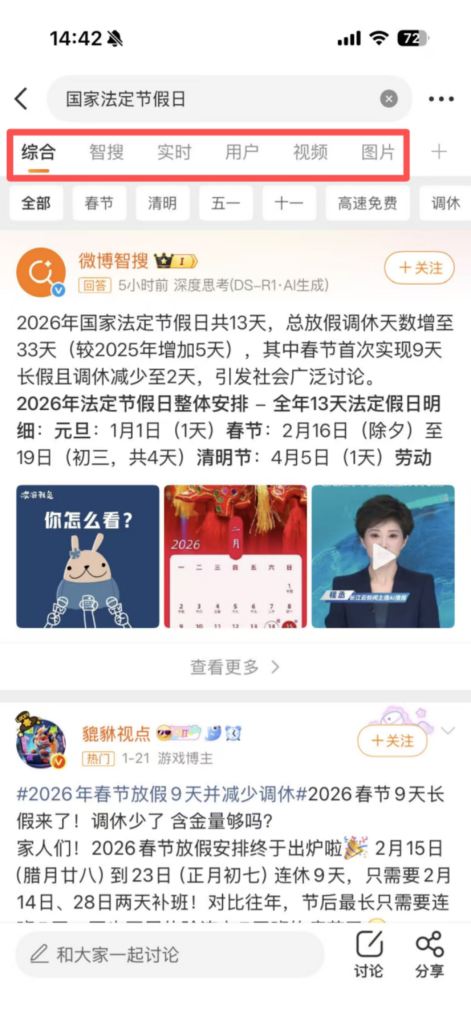
Search results are categorized: search results are divided into sections such as ‘Comprehensive,’ ‘Users,’ ‘Topics,’ ‘Videos,’ and ‘Images,’ which can be switched for viewing; the ‘Comprehensive’ section displays related Weibo posts and news, the ‘Users’ section shows related accounts, and the ‘Topics’ section shows related discussions.
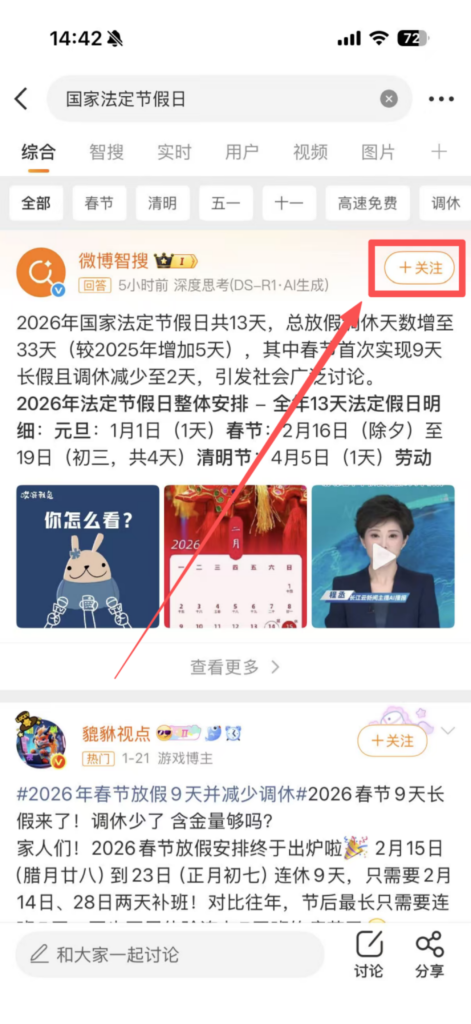
Follow actions: Find an account you’re interested in (celebrities, media, bloggers, friends), click the ‘Follow’ button on the account’s homepage to follow the user, and then receive their updates in the ‘Following’ section on your homepage.
Topic Tracking: After searching for a topic, click on the topic to enter the topic page, and then click ‘Follow Topic’ to track the latest updates on that topic.


